
Crystal Reports and QODBC
Creating a report with QuickBooks Data
Create a New Report via Wizard or Manual Methods:
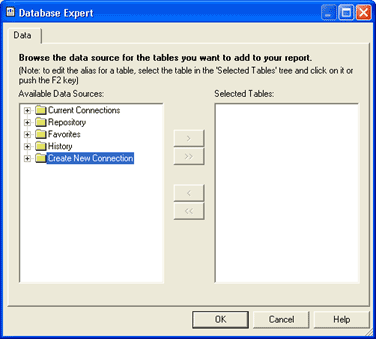
Expand the “Create New Connection” Folder:
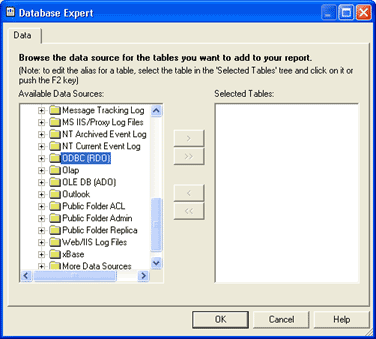
Expand the ODBC (RDO) Folder to bring up the following screen:
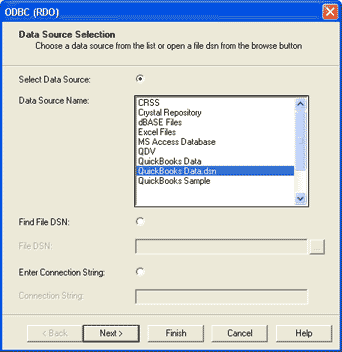
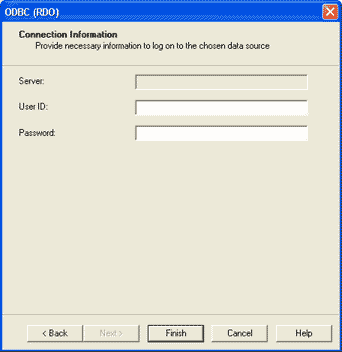
Select “QuickBooksData.dsn” and Click “Next”, then click “Finish” on this screen:
A list of QuickBooks tables now appears ready for selection:
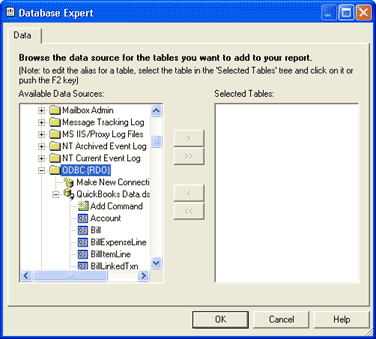
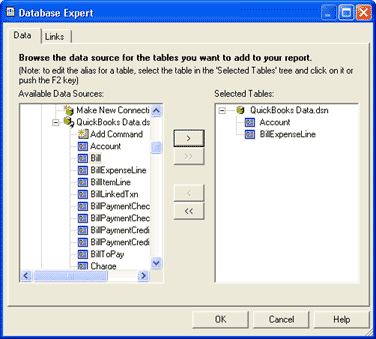
Select several tables for your report (for sp_reports or manual SQL statements, see below):
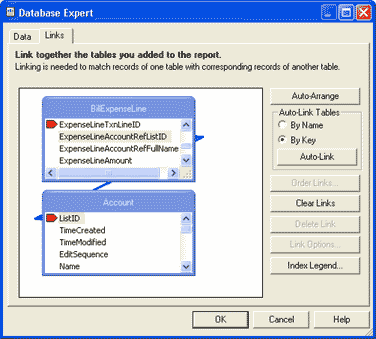
Link your tables: (For linking information see the Data Layouts)
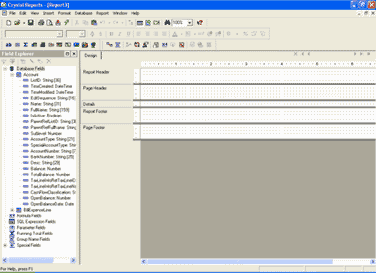
The table fields are now available for selection in your report. Run reports as normal from this point.
Creating a report with SQL or an existing QuickBooks Report
For sp_reports (see the Data Layouts) or manual SQL statements, Highlight “Add Command” and move the right panel.
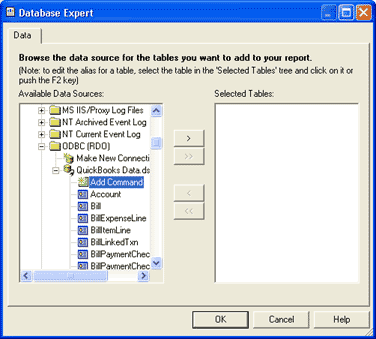
The following window will appear. Type or paste your SQL statement or sp_report command as shown, then click “OK”
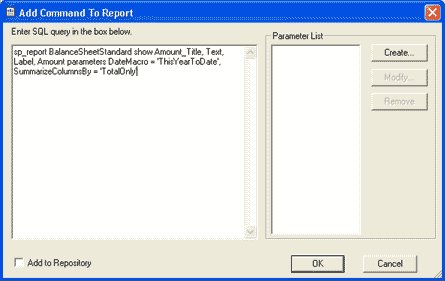
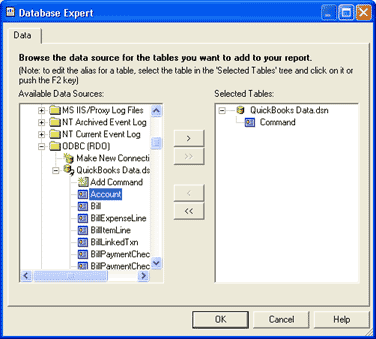
Your SQL statement is now entered; (to edit, just right click on “Command”). Click “OK”
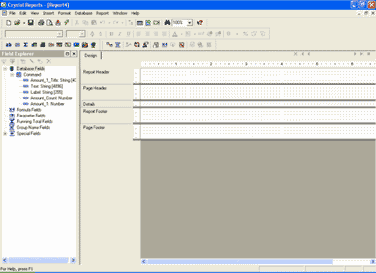
The fields as specified in your SQL statement, are now available for selection in your report.
What to expect when using the QODBC Driver with Crystal Reports
-
QuickBooks is a flat file database. Having an ODBC driver will not change it to a relational database. For this reason, relating more than several tables will begin to severely degrade performance; there are no indexes. This issue will be addressed in future versions of the Intuit SDK and QODBC.
-
QODBC acts as a ‘wrapper’ around the Intuit SDK so customers can finally get at their data using standard database tools; without having to learn the SDK. For Crystal Reports this is the only method of retrieving QuickBooks data.
-
Use filters; in particular date ranges whenever possible
-
Use only the fields you need when using sp_reports
-
Use VB Demo to find out which fields you need
-
Use sp_report (see Data Layouts) to use the QuickBooks report engine that already “relates” the tables. You can relate an sp_report and a table to get a variety of results.
-
Expecting QODBC to operate similarly to other relational based ODBC drivers will cause some frustration because Intuit exposes its data only via XML. You will have to think around the box, but your efforts will be rewarded.
-
When grouping by a table field, use a formula to put the field within it; this allows Crystal to do the grouping in memory, rather than the driver; will be much faster.
The QODBC Development team has created many Crystal Reports that you may tweak, or arrange to have modified for you. If time and learning curve are important factors, This will probably be a cheaper option. See Services.